
|
Custom Data |
The custom data feature in MobiControl allows users to create their own monitoring fields to be shown in the Device Info window. This can be useful for monitoring various aspects of third-party applications. Custom data values are refreshed from the device when the device reconnects to the MobiControl Deployment Server and periodically, while the device status is Online, based on the device update schedule.
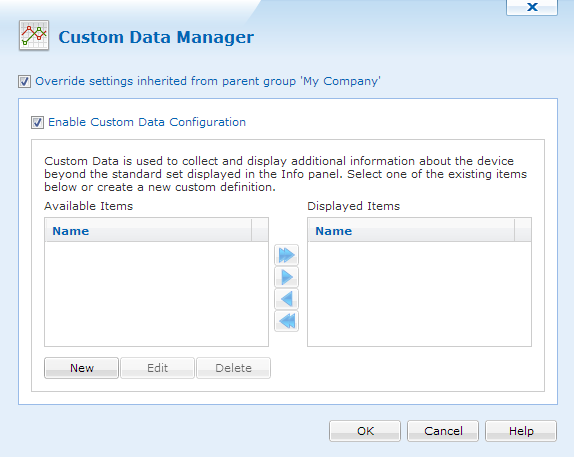
Custom Data Manager
The Custom Data Manager is accessible by right-clicking on a device or group, then selecting Configure Device(s) and clicking Custom Data.
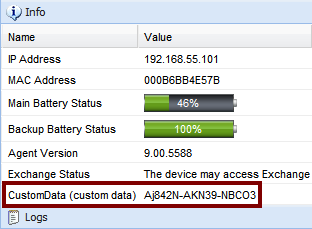
The Device Info panel in MobiControl Web Console
The following custom data types are available:
| Type | Format and Description | Example |
|---|---|---|
| Text File | <Key>=TXT://\<FileName>?LN=<ValueNumber>
Get the content of specified line of the text file (if |
|
| Registry | <Key>=REG://<GlobalKeyName>\<RegistryKey>?VN=<ValueName>
Get a value from the registry.
|
|
.INI File |
<Key>=INI://\<FileName>?SC=<SectionName>&NM=<ValueName>
Get a value from a Section in an |
|
| Exit Code | <Key>=EXE://\<Executable>[<ArgumentList>]
Get the exit code of the executable |
|
STDOUT
|
<Key>=STDOUT://<Executable>[<ArgumentList>]
Get the first line of |
STDOUT://cmd.exe /c dir
|
| Static | <Key>=Text
Enter the static value to display in the device info pane. This information is not based on any value on the device but based on user input. |
|
Editing Custom Data
Configuration of custom data entries is performed through the Custom Data Manager which can be accessed by highlighting the device or the device group and selecting Custom Data from the Configure Device(s) option in the Device menu.
You can use the buttons in the Custom Data Setting Manager dialog box to add new entries, edit existing entries and change the order position of the custom data entries as displayed in the Info window.
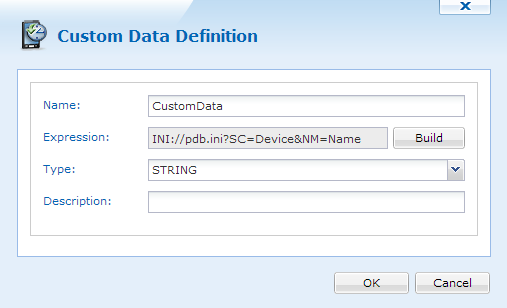
Custom Data Definitions window
The following table describes the fields in the Custom Data Definition dialog box.
| Field Name | Description |
|---|---|
| Name | Name of the custom data field that you want to show in the device info pane |
| Expression | The build button can be used to create a definition which will be used to collect the custom data values. |
| Type | Default is set to "String." This setting is only recommended when doing custom data collection. Other options are "Float" and "Integer." |
| Description | A brief note describing the nature of the custom data query and its purpose. |
Custom Data: Text Files
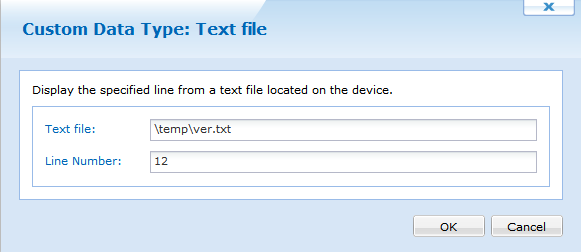
The following table describes the fields in the Custom Data Type: Text File dialog box.
| Field Name | Description |
|---|---|
| Text File Name |
Specify the location of the text file on the mobile device. |
| Line Number |
Specify the line number that should be read from the text file and displayed in the device info pane. |
Custom Data: Registry
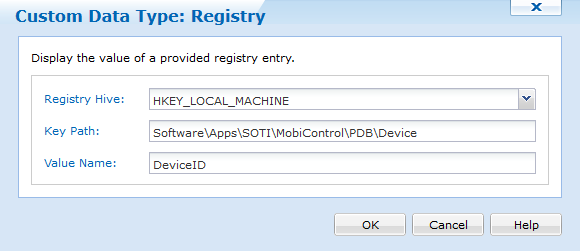
The following table describes the fields in the Custom Data Type: Registry dialog box.
| Field Name | Description |
|---|---|
| Registry Hive |
Specify the registry hive where the information is located. |
| Key Path |
Specify the exact path of the value that needs to be read. |
| Value Name |
Specify the name of the value that should be ready and displayed in the device info pane.
Only |
 Note:
Note:Custom Data: .Ini File
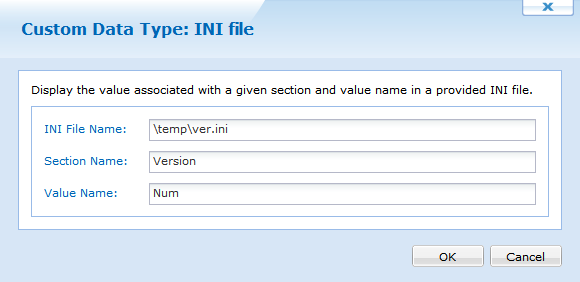
The following table describes the fields in the Custom Data Type: INI File dialog box.
| Field Name | Description |
|---|---|
| INI File Name |
Location of the |
| Section Name |
Section from which the value should be read |
| Value Name |
Value that should be read from the |
Custom Data: Exit Code
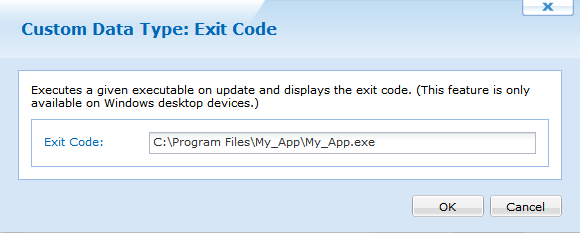
The following table describes the field in the Custom Data Type: Exit Code dialog box.
| Field Name | Description |
|---|---|
| Command Line |
Display the exit code of the application or command line instructions once they are executed. |
Custom Data: STDOUT
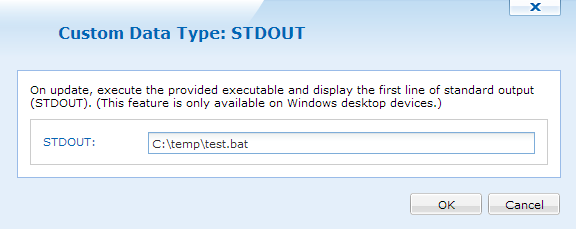
The following table describes the field in the Custom Data Type: STDOUT dialog box.
| Field Name | Description |
|---|---|
| Command Line |
Enter the command line instructions that should be executed and the first line of the return is displayed in the device info pane. |
Custom Data: Static Data
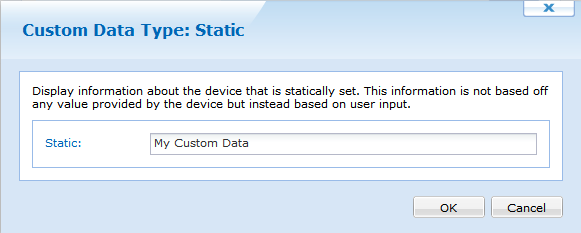
The following table describes the fields in the Custom Data: Static Data dialog box.
| Field Name | Description |
|---|---|
| Static Value |
Enter the static value here to display in the device info pane. This information is not based on any value on the device but based on user input. |
Embedded Query
A query string can be in another query string by using the format
%<KeyName>%. The embedded query must be defined
before the query. It works only in static type
query and there has to be one static custom data type for every embedded query.
 Example:
Key1=TXT://\RegLocationSSID.txt?LN=1
Key2=REG://%Key1%
Limitations
- All result values are limited to 250 characters. They will be truncated if this limit is exceeded.
- All Query Key Names are limited to 80 characters.
- All query strings (URLs) are limited to 250 characters.
- Typing "
STDOUT" works on DOS and Desktop Agent. It doesn't work on CE and Pocket PC Agent.
Custom Data Device Column
Once custom data has been configured, you can display or hide these custom data. Right-click on the device tree header or white space in the device tree and select name of Custom Data.
