ERG Setup Step 4: Set Up the IIS Module
Use the following steps to set up the IIS module on the machine on which the Enterprise Resource Gateway has been installed.
-
Copy
mcxas.inifromC:\Program Files (x86)\SOTI\XAStoC:\Windows\System32\inetsrv.Copy
Soti.MobiControl.ProxyFilter.dllfromC:\Program Files (x86)\SOTI\XAStoC:\inetpub\wwwroot\bin. -
In Internet Information Services (IIS) Manager, in the Connections pane, select the web site that is publishing the proxy server component.
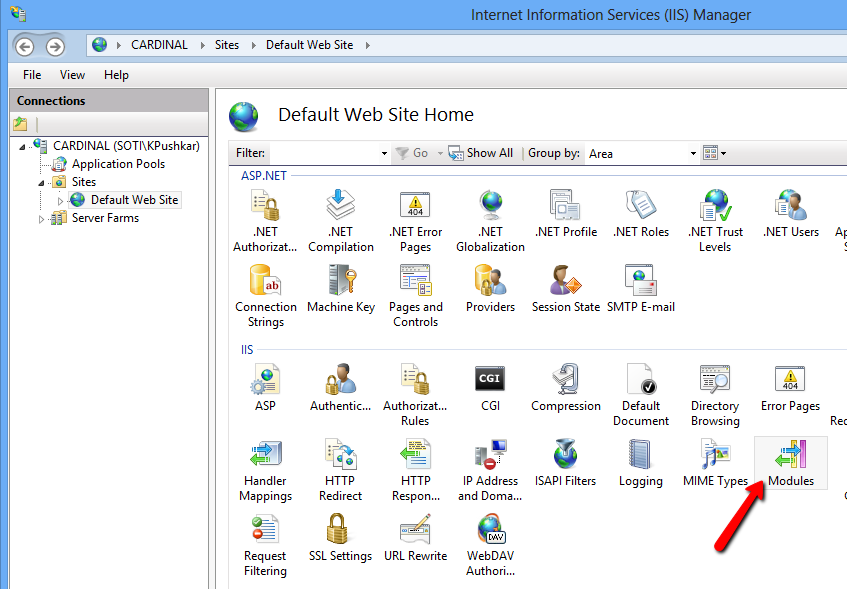
In the web site's Home pane, double-click on Modules to open the Modules pane.
-
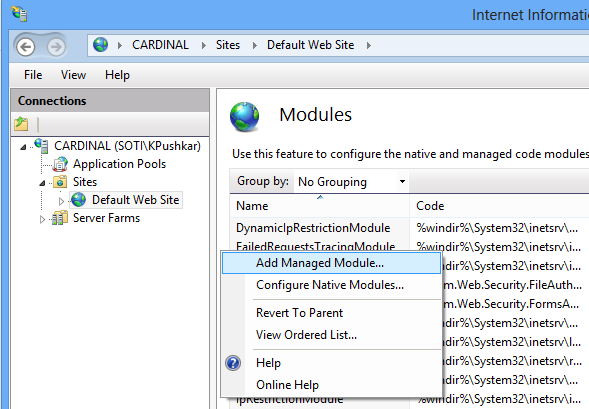
Right-click anywhere in the Modules pane and select Add Managed Module to open the Edit Managed Module dialog box.
-
In the Edit Managed Module dialog box, enter the module name (
Soti.MobiControl.ProxyFilter) in the Name field.In the Type list, select
ProxyFilter.Module.MCFilter.When you are done, click OK to close the Edit Managed Module dialog box.
-
Verify that the previous step successfully added the following section to
C:\inetpub\wwwroot\web.config:<system.webServer> <configuration> <modules> <add name="Soti.MobiControl.ProxyFilter" type="ProxyFilter.Module.MCFilter"/> </modules> </configuration> </system.webServer>If the above section was not automatically added to
C:\inetpub\wwwroot\web.config, add it by manually editing the file.To increase the timeout interval for the web site, add to following configuration setting to the
web.configfile:<system.web> <httpRuntime executionTimeout="65535"/> </system.web>To enable support for special characters in the URL, add the
requestPathInvalidCharactersandrequestValidationModeattributes to thehttpRuntimeelement, and add thevalidateRequestattribute to thepageselement:<system.web> <httpRuntime executionTimeout="65535" requestPathInvalidCharacters="" requestValidationMode="2.0"/> <pages validateRequest="false"/> </system.web>
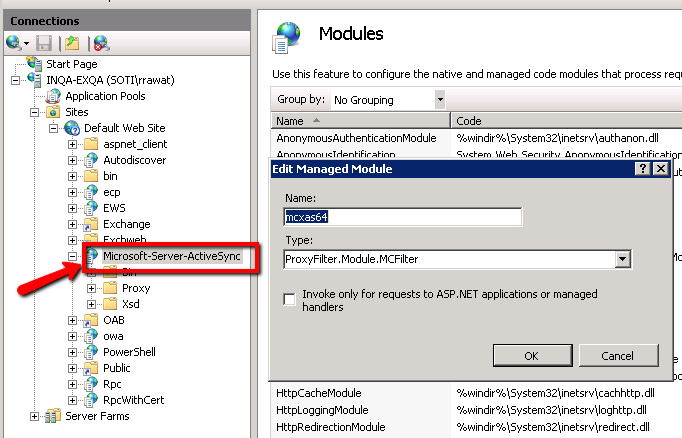
Note: If you are installing the IIS module on an Exchange Server and not using a separate proxy server and ARR, install the IIS module on the Microsoft-Server-ActiveSync site, which is available under Default Web Site in the Internet Information Services (IIS) Manager's Connections pane. Ensure also that the application pool running the web site is on .NET Framework version 4.0 or higher.