ERG Setup Step 3: Download and Install the Enterprise Resource Gateway
Use the following steps to download and install the Enterprise Resource Gateway.
-
In the MobiControl Web Console, click on the All Platforms tab to open it.
-
On the All Platforms tab, click on the Servers tab to open it.
-
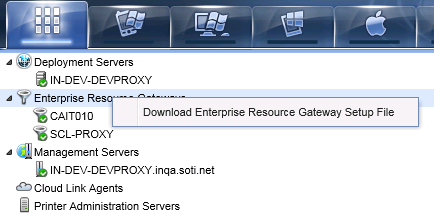
On the Servers tab, in the servers list at the top left corner, right-click on Enterprise Resource Gateways and select Download Enterprise Resource Gateway Setup File.
Note:
This step must be performed separately for each server on which you want to install the Enterprise Resource Gateway. For example, if you want to install the Enterprise Resource Gateway on three different servers, you must download the Enterprise Resource Gateway setup file three separate times, one for each server. This is necessary because a unique client certificate is generated for each instance of the Enterprise Resource Gateway setup file that is downloaded. If you attempt to use the same setup file on all three servers, only the first server will appear in the MobiControl Web Console.
-
Move the
EnterpriseResourceGateway.exesetup file you downloaded in the previous step to the machine on which you want to install the Enterprise Resource Gateway. -
Run the
EnterpriseResourceGateway.exesetup file to install the Enterprise Resource Gateway.The installer will extract the following two files to
C:\Program Files (x86)\SOTI\XAS:mcxas.ini– the Enterprise Resource Gateway configuration fileSoti.MobiControl.ProxyFilter.dll– the 64-bit version of the Enterprise Resource Gateway DLL
The installer also installs the client certificate in the Personal Certificates store. You can check this by going to
Console Root\Certificates (Local Computer)\Personal\Certificatesin the Microsoft Management Console. This certificate is used by the Enterprise Resource Gateway to connect to the MobiControl Management Service. -
To provide the client certificate with permissions to make calls to the Enterprise Resource Gateway, you need to provide Everyone with Full Control permissions for the client certificate.
In the Microsoft Management Console, go to
Console Root\Certificates (Local Computer)\Personal\Certificates. Right-click on the client certificate and select All Tasks > Manage Private Keys.In the Permissions dialog box, add the Everyone group and give that group Full Control permissions. When you are done, click OK to close the Permission dialog box.