ERG Setup Step 2: Configure the Root Certificate
Use the following steps to configure the MobiControl Root certificate.
-
On the machine on which MobiControl is installed, open the MobiControl Administration Utility.
-
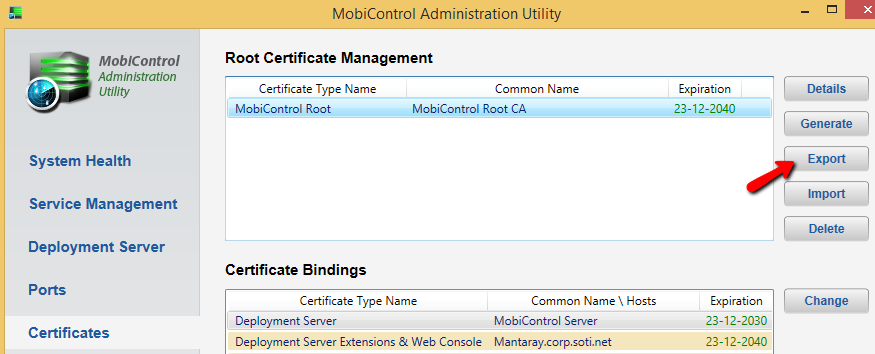
In the left pane of the MobiControl Administration Utility, click on Certificates to display the Root Certificate Management list. In the list, select the MobiControl Root certificate and click on the Export button to export the certificate.
-
Copy the MobiControl Root certificate to the machine on which you are installing the Enterprise Resource Gateway so you can import it.
-
On the machine on which you are installing Enterprise Resource Gateway, open the Microsoft Management Console.
-
In the Microsoft Management Console, on the File menu, select Add/Remove Snap-in.
-
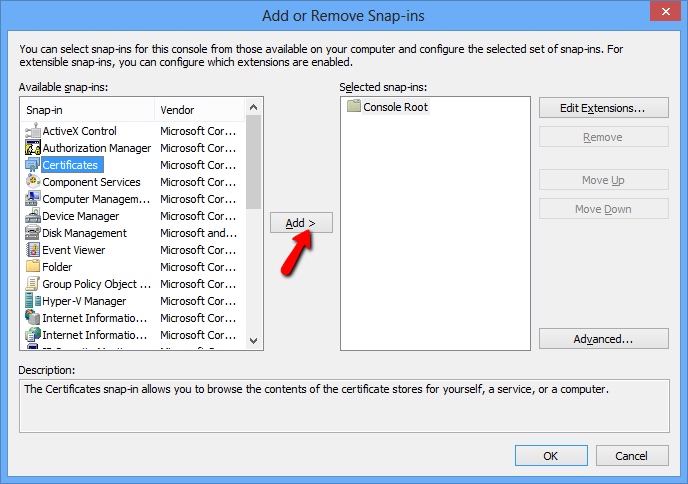
In the Add or Remove Snap-ins dialog box, in the Available Snap-ins list, select Certificates and click the Add button to start the Certificates Snap-in wizard.
-
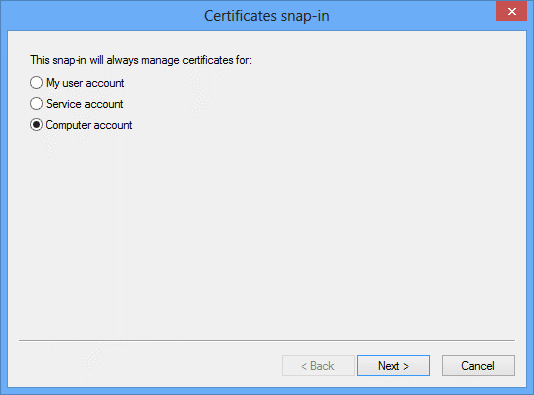
In the first wizard panel, select Computer Account, then click Next.
-
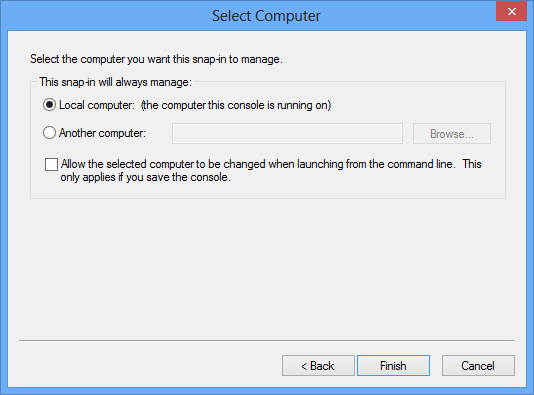
In the second wizard panel, select Local Computer, then click Finish.
-
Click OK to close the Add or Remove Snap-ins dialog box.
-
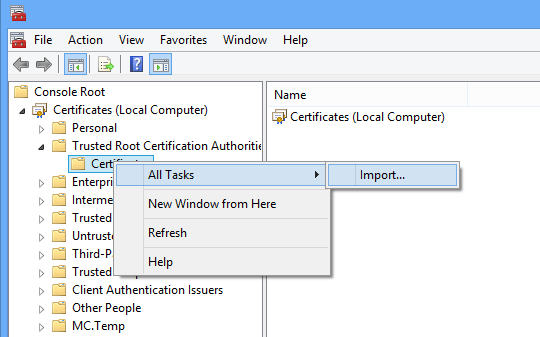
In the Microsoft Management Console, in the left treeview pane, expand to Certificates (Local Computer) > Trusted Root Certification Authorities > Certificates.
Right-click on the Certificates folder and select All Tasks > Import to start the Certificate Import Wizard.
-
In the first wizard panel, accept the default setting, then click Next.
In the second wizard panel, enter the filesystem location where you copied the MobiControl Root certificate earlier, then click Next.
In the third wizard panel, accept the default setting, then click Next.
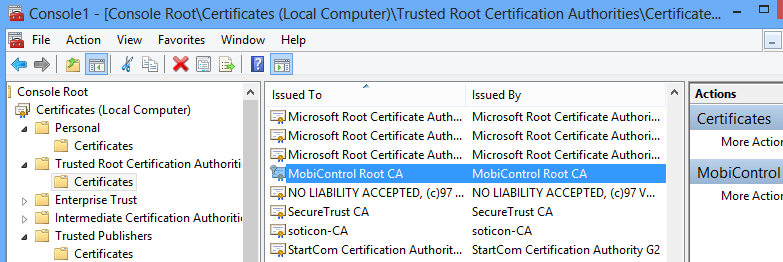
In the final wizard panel, click Finish. The MobiControl Root CA certificate is now listed in your Trusted Root Certification Authorities.