
|
.Cab File Properties |
This dialog box allows the user to modify a .cab file's
properties, such as its destination folder on the device, and how it is
to be processed once it is copied to the device. The default command line options can be used to
automatically install the .cab file on the device or these options can be modified to
customize the installation of the .cab file.
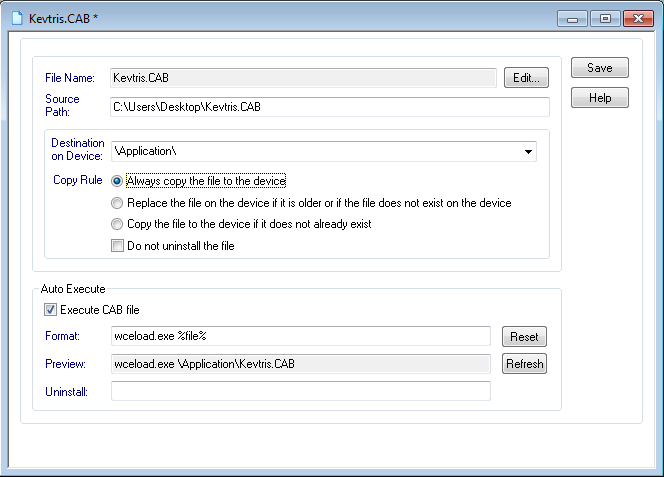
.Cab File Properties dialog box
The following table describes the fields of the .Cab File Properties dialog box:
| Field Name | Description |
|---|---|
| File Name | Read-only field that displays the name of the .cab file |
| Edit | Edit the contents of the .cab file using the associated application
for that extension. |
| Source Path | Read-only field that is used to display the full source path to the file |
| Destination on Device | Path on the device to where the file will be copied |
| Copy Rule |
Specifies the condition to be checked before the file is copied to the device. Options are:
|
| Do not uninstall the file |
The file will not be uninstalled from the device if the package is uninstalled, for instance, if the deployment rule is deleted. |
| Execute CAB file |
The command line specified in the preview field will be automatically executed after the file is copied to the destination directory. |
| Format |
Allows the user to customize
the command line to be executed after the file is copied to the
device. The " |
| Preview |
A read-only field that displays the command to be executed after the file has been copied to the destination folder. After the format field has been edited, the user needs to click on the Refresh button to update the preview field. |
| Uninstall | The command line to be used to uninstall the .cab file during uninstallation of the package if the Execute cab file option is checked |
Auto-Execute Options and wceload.exe
To install a .cab file on the mobile device, the Microsoft
utility wceload.exe is used. This utility is built into the Microsoft operating system for mobile devices
for customizing the installation of .cab files on the mobile device.
Important:
The following information is only for the convenience
of MobiControl customers and does not replace any official documentation available from Microsoft. It is recommended
that you consult Microsoft's website for additional documentation and information for developers.
For more information on wceload.exe, please see the following on Microsoft's site: http://msdn.microsoft.com/en-us/library/bb158700.aspx.
There are a series of command-line options that
can be used to control aspects of the .cab file installation. These
options vary for different operating systems.
Some options may not be implemented at all for certain devices.
 Example:
wceload.exe [ /delete <value> | /noui ] [ /confignotify | /nodelete | /safe | /silent | /verifyconfig] <location
 of cab file>
| Option | Description |
|---|---|
/delete <value>
|
|
/nodelete
|
Specifies that the .cab file is not removed after installation. |
/noui
|
Specifies that the user will not be prompted for any input during the installation. By default, prompts are answered with Yes.
However, if the .cab file is unsigned, any security-related prompts will default to No for security reasons, and the installation might fail.
This is the same as "/silent" for legacy compatibility reasons.
|
/silent
|
Suppresses dialog boxes during the installation, and all Yes/No prompts default to Yes, unless the .cab file is not signed. However, if the .cab file is unsigned, any security-related prompts will default to No for security reasons, and the installation might fail.
This is the same as "/noui" for legacy compatibility reasons. |
/nouninstall
|
Uninstall information for the application installed by this cab file is not written to the device. The application entry will not appear in the Remove Programs list on the mobile device so the application cannot be removed. This is only available with Windows Mobile 5 and below. |
/askdest
|
The user is prompted to select an installation location on the mobile device to where the application will be installed. |
/noaskdest
|
The user is not prompted to select an installation directory; the default installation directory specified by the cab file is used instead. |
/safe
|
Specifies that the .cab file cannot contain executable
files. Also, if the .cab file is unsigned;
it can only use restricted permissions, ensuring that it will not be able to write
to protected files and registry keys. Only available with Windows
Mobile 6 and above. |
/verifyconfig
|
Specifies that the wceload tool must verify whether the file passed in is a .cpf file. If the file is not a .cpf file, the installation fails. Only available with
Windows Mobile 6 and above. |
/confignotify
|
Generates a configuration result notification that is placed in the Text Message store on the device. Only available with Windows Mobile 6 and above. |
 Note:
Note:
The results for "/noaskdest" may differ on some devices, for instance, Smartphone devices. When specifying this option, wceload.exe might
ignore the command line and check for the installation path in the following
registry location: [HKEY_LOCAL_MACHINE\SOFTWARE\Apps\Microsoft Application
Installer\Install]
The contents are key/value pairs:[cab File Path] = [cab Destination
Directory]
Example:
\Storage Card\MyApp.cab =
 \Storage Card\Program Files\My App
will lead wceload.exe to try to install the .cab
specified in the value name to the location specified in the value.
In order to suppress any warnings and control the location to which the
.cab file should be installed, you may need to create the appropriate
registry value (possibly using a MobiControl pre-install script) before
installing the .cab file in the package.